Screenshot, annotate,
paste. That's it.
CrispyShot sits in your Menu Bar. Press a shortcut, select an area or grab the full screen, draw annotations with arrows, text, or blur, then paste it anywhere. Lightweight, fast, and completely private — nothing leaves your Mac.
Press ⌘ + ⇧ + 9 to capture an area
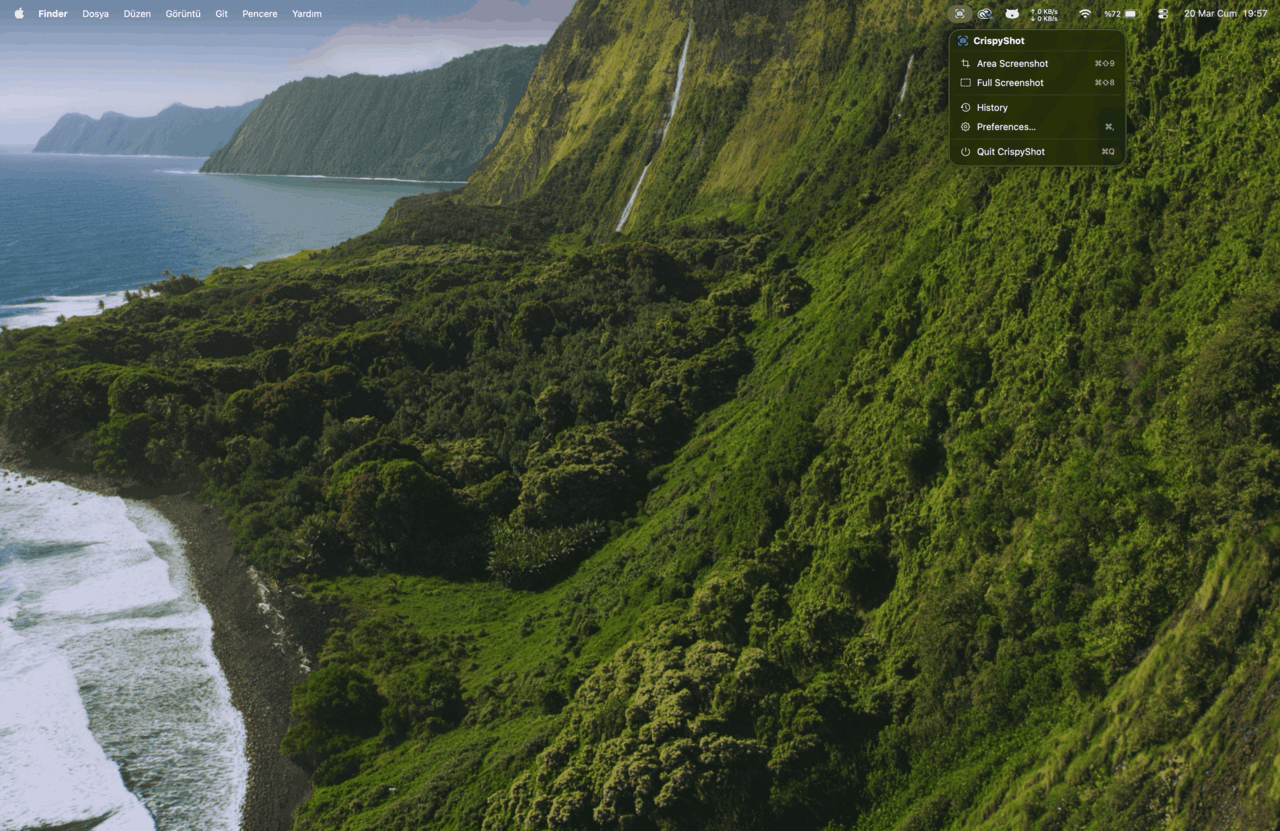
Area or Full Screen Capture
CrispyShot sits quietly in your Menu Bar. Press a shortcut, drag to select an area, or capture the entire screen. The screenshot is saved to your chosen folder and copied to your clipboard at the same time.
- Area selection (⌘⇧9) and full screen (⌘⇧8)
- Floating thumbnail preview — click, drag, or swipe to dismiss
- Screenshot history with ⌘⇧H toggle
- Standard (1x) or Retina (2x) resolution toggle
- JPEG, PNG, HEIC, or TIFF with quality slider
- Auto-save to a configurable directory
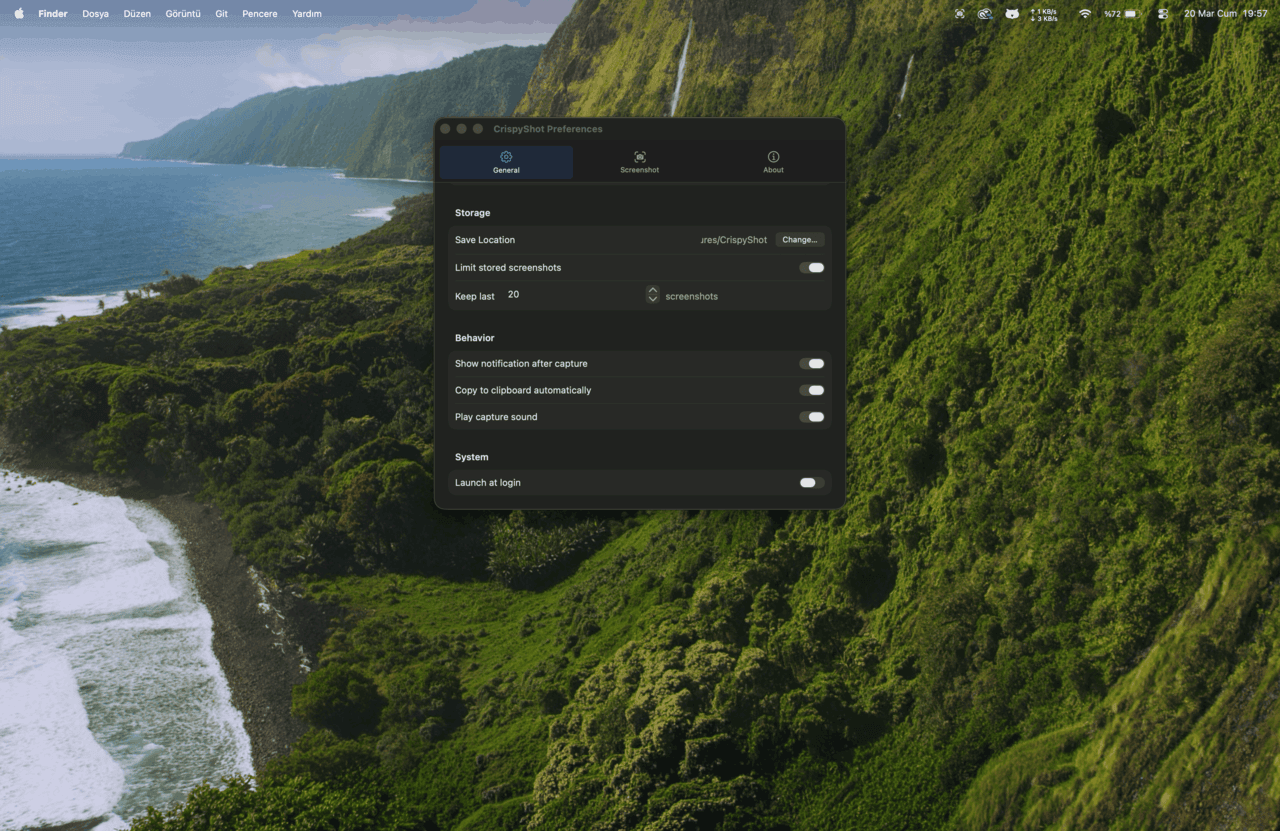
Draw on It Before You Share
After taking a screenshot, annotate it right on the capture overlay. Add arrows to point at things, blur out sensitive info, highlight a section, or type a quick note. What you see on screen is exactly what gets saved — pixel-perfect, every time.
- 9 tools: arrow, line, rectangle, ellipse, text, freehand, highlight, blur, and a pointer to move things
- 14 colors from red to black, with adjustable line widths
- Text tool with font picker, size (10–48pt), and background opacity
- Select, move, and resize any annotation with handle controls
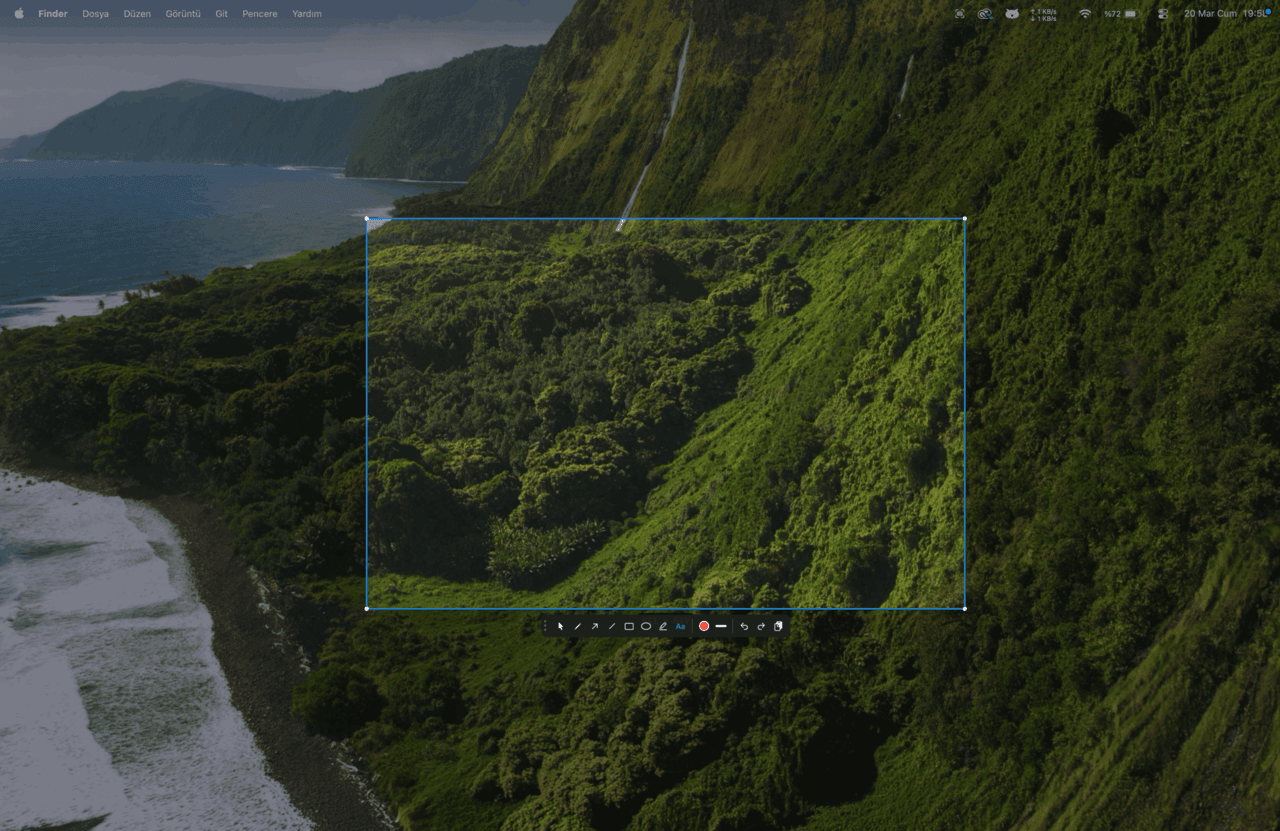
Three steps. Two seconds.
CrispyShot is designed to get out of your way.
Press the shortcut
Hit ⌘⇧9 for area or ⌘⇧8 for full screen. A capture overlay appears instantly — no window to find, no app to switch to.
Draw annotations
The toolbar appears on the overlay. Pick a tool — arrow, text, blur, highlight — choose a color, and draw directly on your screenshot. Undo with ⌘Z.
Paste anywhere
Press ⌘C to copy. The annotated image is on your clipboard and saved to disk. Paste it into Slack, Notion, Finder, or any app.
The Details
Small things that make everyday use smooth.
File + Clipboard
Every capture is automatically saved to your chosen folder and copied to your clipboard — both as a file URL and as image data. Paste into Finder, Slack, or any app directly.
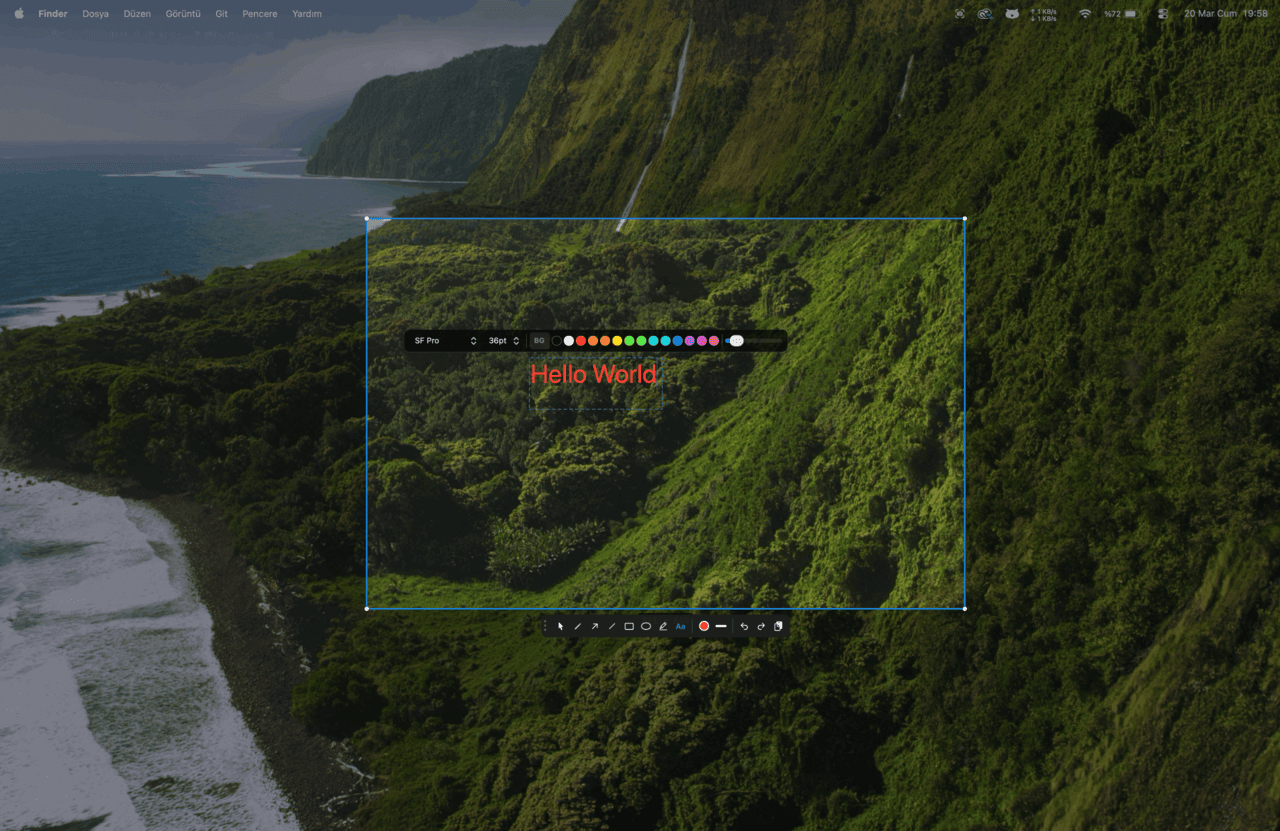
Undo / Redo
Every annotation action is tracked with a snapshot-based undo stack. Press ⌘Z to step back, ⌘⇧Z to redo. Delete individual annotations with the pointer tool.
Preferences
Choose your image format, set a quality level, pick a save directory, toggle notifications and sounds, and set a screenshot storage limit with auto-cleanup.
Built for your workflow
Whether you're filing bugs, writing docs, or sharing quick context — CrispyShot fits in.
Bug Reports
Blur out sensitive data, add arrows pointing to the issue, type a note. Paste the annotated screenshot straight into your issue tracker.
Documentation
Highlight UI elements, number the steps, add text labels. Capture exactly what the user should see, already annotated.
Quick Context
Grab a region, circle the relevant part, paste it into Slack or a PR comment. Two-second turnaround, no image editor needed.
Give it a try
CrispyShot is free. No account required, no data collected.
Download for macOS